

Setting up Xtreme HD IPTV on your Windows PC is straightforward when you know which apps to use and how to configure them. This guide covers everything from getting your subscription to installing the best players with step-by-step instructions and direct download links.
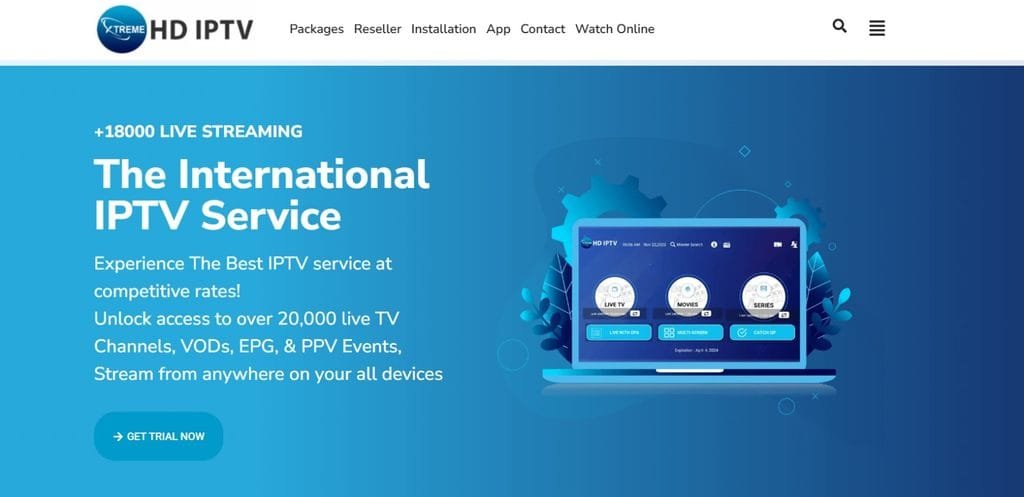
🔗 Official Website & Important Notice
⚠️ Critical: The official and legitimate domain for Xtreme HD IPTV is https://xtremehdiptv.site.
A defunct domain, xtremehdiptv.org, was previously used by US and is no longer connected to the service. Always use the official .site domain to avoid phishing attempts or scams.
📱 Best Windows IPTV Players for 2026
Since Xtreme HD IPTV provides a playlist rather than a dedicated Windows app, you’ll need a third-party media player. Here are the top options with direct download links:
1. Blazin IPTV Player (Recommended)
A modern, feature-rich player with a clean interface and strong support for all connection types.
Key Features:
- Supports M3U files, M3U URLs, M3U Plus, Xtream Codes, STB MAC, and Stalker Portal
- Built-in VLC internal player
- Multi-threaded playlist loading for fast performance
- Live TV, Movies, and TV Series sections
📥 Download: Available on the Microsoft Store — search for “Blazin IPTV Player”. Includes a free 7-day trial.
2. Nightmare TV (For Power Users)
A sophisticated player built for high-quality streaming with advanced features.
Key Features:
- HDR and Dolby Atmos support
- HEVC and AV1 hardware decode
- MultiView for watching multiple channels at once
- Picture settings adjustment (brightness, gamma, contrast)
- Stream recording and screenshot capture
- Supports both Xtream and M3U streams
📥 Download: Available via Softpedia or the Microsoft Store. Features a 14-day free trial.
3. Xtreme IPTV Player — Rust Edition (For Tech Enthusiasts)
A lightweight, cross-platform player optimized for speed and low memory usage.
Key Features:
- Built in Rust — extremely fast startup and low memory footprint
- Full Xtream Codes API support
- Multi-player support: VLC, mpv, ffplay
- Hardware acceleration (DXVA2 / D3D11VA on Windows)
- Connection quality presets to reduce buffering
📥 Download: pee-built binaries available via npm:
bash
npm install -g xtream-rust
xtreme-iptv
Or download directly from the GitHub Releases page.
4. BlueStacks (Android Emulator Method)
If you prefer using the Android version of the Xtreme HD IPTV app, you can run it on your Windows PC via the BlueStacks emulator.
📥 Download: Official BlueStacks Website
Minimum Requirements: Windows 7 or above, 4GB RAM, Intel/AMD processor.
⚙️ Step-by-Step Setup Guide
Step 1: Subscribe and Get Your Credentials
- Visit
https://xtremehdiptv.site and choose a subscription plan. - After purchase, you’ll receive an email with your connection details:
Step 2: Install Your Chosen Player
Follow the download links above to install your preferred player. For first-time users, Blazin IPTV Player is recommended for its ease of use.
Step 3: Enter Your Service Details
For Blazin IPTV Player (or similar apps):
- Launch the application.
- Choose your connection method:
- M3U URL: Paste the playlist link provided in your subscription email.
- Xtream Codes: Enter your Server URL, Username, and Password.
- Save your settings — the app will load your channels and VOD library.
For Xtreme IPTV Player — Rust Edition:
- Launch the application.
- Enter your Xtream Codes:
- Server:
http://yourserver.com:port - Username: Your provided username
- Password: Your provided password
- Server:
- Click Login.
- Browse Live TV, Movies, or Series and double-click a channel to play.
Step 4: Start Streaming
Once loaded, browse the channel categories, movies, or series, and click any content to start watching.
🛠️ Troubleshooting Common Issues
Buffering or Stuttering
Connection Errors
- Double-check your Xtream Codes or M3U URL — a simple typo prevents access.
- For VLC issues in Rust Edition, use the full VLC path:
C:\Program Files\VideoLAN\VLC\vlc.exe.
Player Won’t Start
📋 Quick Reference
| Task | Action |
|---|---|
| Official Website | https://xtremehdiptv.site |
| Contact Support | info@xtremehdiptv.site |
| Recommended Player | Blazin IPTV Player (Microsoft Store) |
| Alternative Player | Nightmare TV (HDR/Atmos support) |
| Lightweight Option | Xtreme IPTV Rust Edition (npm install) |
Important Disclaimer: These apps are media players only. They do not provide channels, playlists, or IPTV content. Users must provide their own legal IPTV source via their Xtreme HD IPTV subscription
